Note: To record a purchase credit note, see How to Record a Purchase Credit Note.
To allocate a purchase credit note, select it in the Purchase Invoices list (menu Setup > Purchase Invoices).
Then click File > New > Allocate Selected Credit:
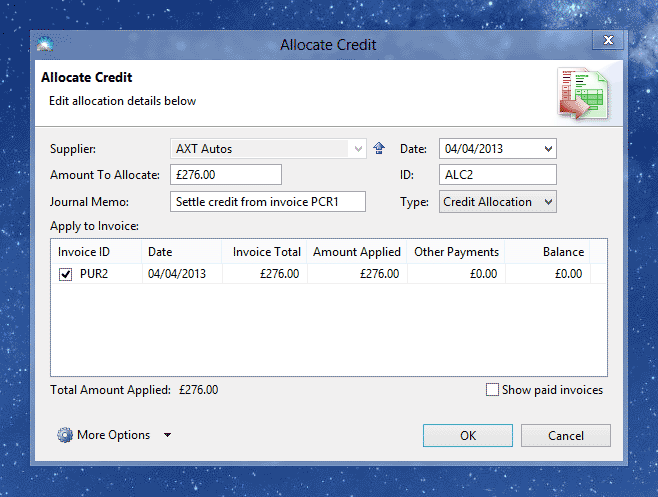
Enter the details into the following fields:
Supplier: The name of the supplier. This field is read-only.
Date: The date you allocated the credit.
Amount to Allocate: The amount of credit to allocate. This figure may be less than the full credit note amount.
ID: A unique number for this transaction.
Journal Memo: A description of this transaction for your records.
Type: This is the type of payment. This will always be 'Credit Allocation'.
Apply to Invoice: Tick purchase the invoice to apply the credit to. See How To Record a Bill or Purchase Invoice for more information on recording a purchase invoice.
Total Amount Applied: This is the total of the 'Amount Applied' column and must match the 'Amount To Allocate' field.
Show paid invoices: Tick this box if you wish to allocate to a paid invoice. Note that this will result in the invoice being overpaid.
Click 'OK' to save the credit allocation. The new transaction will appear in the Transactions list (menu Window > Transactions).
