Tip: You can copy an existing invoice by selecting it in the Invoices list and clicking menu Edit > Copy.
To create an invoice, click menu File > New > Invoice. The Invoice window will be shown:
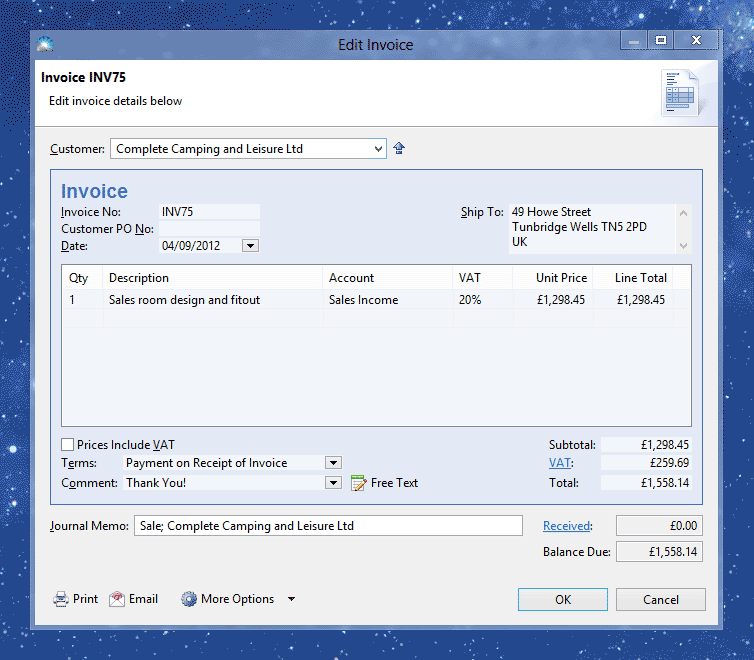
(Note: The VAT column is only shown if your business is registered for VAT)
Enter the details of your invoice into the following fields:
Customer: The name of your customer. To create a new customer, click 'New Customer' from the drop-list.
Invoice No: The identifying number you want to use to refer to this invoice. Note that you can change the default invoice number sequence.
Customer PO No: The purchase order number which the customer uses to refer to their order. Can be left blank if the customer hasn't given you an order number.
Date: The date you issued the invoice.
Ship To Address: The address where the goods will be shipped. For a service invoice, this can be left blank.
Qty: The quantity of goods or services provided (e.g. 15 kilograms or 8 hours)
Description: A description of the goods or services provided. To enter a long description with multiple lines, click the ellipsis ('...') button to the right of the current description field.
Account: This is the account used to keep track of your sales. Usually this is 'Sales Income', but you might want to distinguish between different types of income (e.g. 'Shipping Fees Collected' or 'IT Support Income'). In this case, you can create a new income account by clicking 'New Account' from the account drop-down list.
VAT Column (only shown if registered for VAT): This is the rate of VAT you charge your customer. This is usually 20%, but there are exceptions – if you're not sure of the correct rate, talk to your accountant or call the HMRC National Advice Service on 0845 010 9000.
Unit Price: This is the price you charge per unit of goods or services (e.g. £4.70 per kilogram or £40 per hour)
Line Total: The total amount for the invoice line – automatically calculated as Quantity multiplied by Unit Price.
Prices Include VAT: By default, the Unit Price and Line Total amounts do not include VAT. Tick this box if you prefer to enter the amounts including VAT. (Note that the invoice line will still be printed excluding VAT as required by HMRC).
Terms: The credit terms you offer for this sale. This determines how long the customer has to pay you. If none of the default credit terms are suitable, click 'New Credit Terms' in the drop-down box.
Comment: A comment that will appear on the invoice.
Subtotal: The total of all invoice lines.
VAT: The total amount of VAT the customer must pay you.
Total: The total amount the customer must pay you.
More Options > VAT Treatment (only shown if registered for VAT): This list choice determines how your sale will affect your VAT return. Select the option which best describes the sale.
Journal Memo: A description of this sale to appear in your transaction list.
Paid Today (only shown for new invoices): If you receive payment from the customer on the date of the invoice, enter the amount paid here. This will create a new payment associated with this invoice.
Received (only shown for existing invoices): This is the total amount received from the customer for this sale.
Balance Due: The amount owing by your customer. This is the difference between the invoice total and amount received.
Once you've entered the invoice details, click OK to save it.
The invoice will appear in the Invoice list (accessible by clicking menu Window > Invoices). You can print the invoice by selecting it in the list and clicking menu File > Print.
