If your supplier credits your account (eg. for returning faulty goods), you need to create a purchase credit note. This purchase credit note can later be allocated to a purchase or paid as a refund.
To create a purchase credit note, click menu File > New > Credit Note.
Change the Document Type to 'Purchase Credit Note':
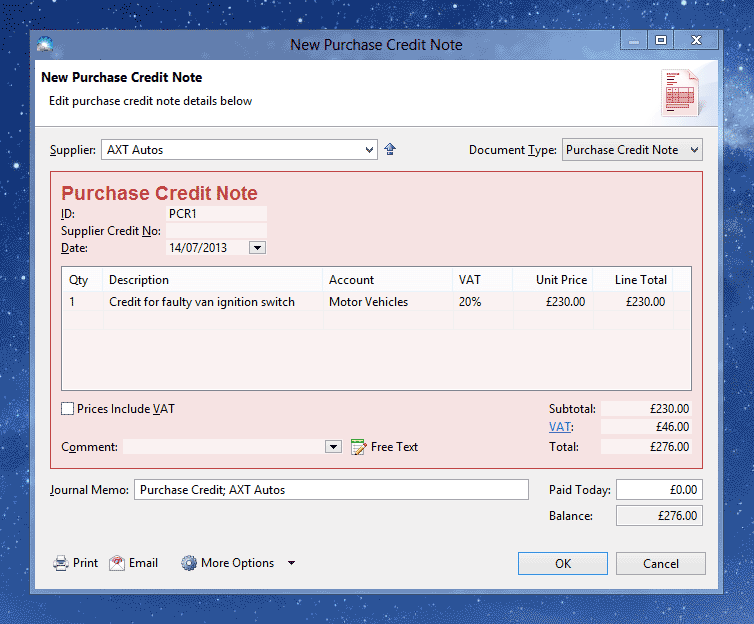
Enter the details of the credit note into the following fields:
Supplier: The name of your supplier.
ID: A unique number for your records.
Supplier Credit No: The number assigned by the supplier. Can be left blank.
Date: The date of the credit note.
Qty: The quantity of goods or services returned (e.g. 15 kilograms or 8 hours).
Description: The reason why the account is being credited. To enter a long description with multiple lines, click the ellipsis ('...') button to the right of the current description field.
Account: The account used to keep track of the credit. This is usually the same account that was used when recording the original purchase.
VAT Column (only shown if registered for VAT): The rate of VAT your supplier is crediting, as shown on the credit note.
Unit Price: This is the price your supplier is crediting per unit of goods or services (e.g. £4.70 per kilogram or £40 per hour)
Line Total: The total amount for the credit note line – automatically calculated as Quantity multiplied by Unit Price.
Prices Include VAT: By default, the Unit Price and Line Total amounts do not include VAT. Tick this box if you prefer to enter the amounts including VAT.
Comment: Any comment that appears on the credit note.
Subtotal: The total of all credit note lines.
VAT: The total VAT included in the credit amount.
Total: The total credit amount.
More Options > VAT Treatment (only shown if registered for VAT): This list determines how your credit note will affect your VAT return. Select the option which best describes the original purchase.
Journal Memo: A description of this credit note to appear in your transaction list.
Paid Today (only shown for new credit notes): If you received a refund from the supplier on the date of the credit note, enter the amount received here. This will create a new refund transaction associated with this credit note.
Paid or Applied (only shown for existing credit notes): This is the total amount received from the supplier or applied to another purchase.
Balance: The balance remaining – this is the amount which is yet to be refunded or applied to another purchase.
Once you've entered the credit note details, click OK to save it. The credit note will appear in the Purchase Invoices list (accessible by clicking menu Window > Invoices).
After you've created a purchase credit note, you should record a supplier refund or allocate the credit to an invoice.
