Note: This text has been updated to present a simpler method for tracking stock in Solar Accounts. The older method can be found here.
To create an account to keep track of the value of your stock, click menu File > New > Account:
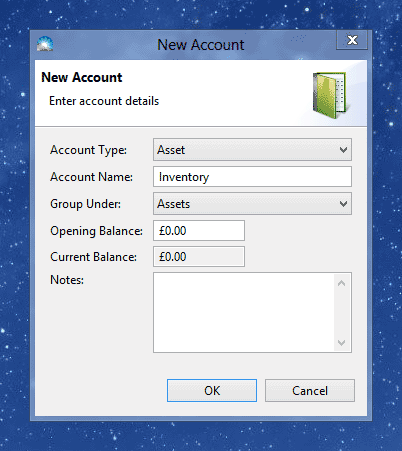
Set the Account Type to 'Asset' and name the account 'Inventory'.
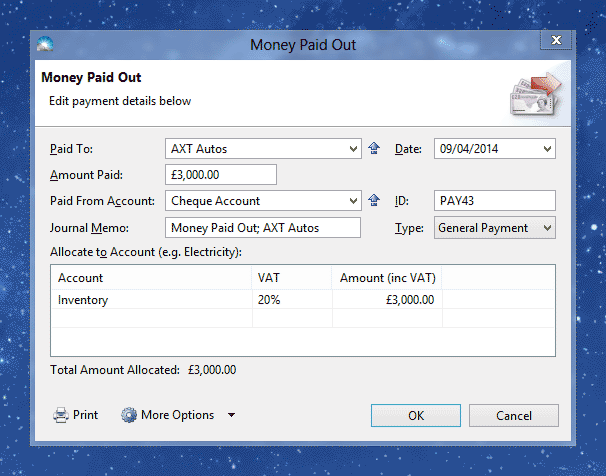
When you purchase stock allocate the payment to the Inventory account:
At the end of each month create a new General Transaction to record the amount of stock that has been sold during that month.
Click menu File > New > General Transaction, and set the From Account to 'Inventory' and the To Account to 'Cost of Goods Sold':
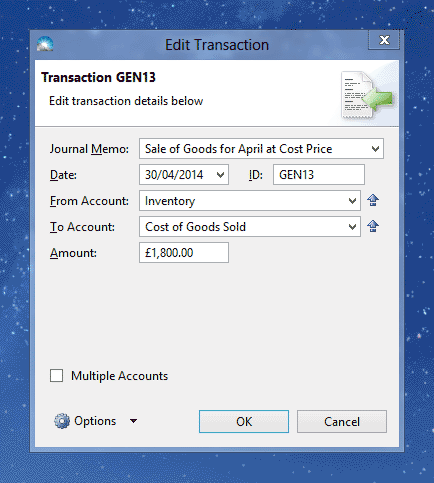
Note: The amount above should be the cost price of the goods sold, not the sale price. (The sale price is recorded as a separate transaction when you either issue an invoice or record a cash sale).
To view the balance of the Inventory account over time, click menu Window > Account Activity, then set the Account field to 'Inventory'
