If your Mac has an Apple silicon processor (M1 or later) and you upgrade to macOS 27, Solar Accounts Online may need Apple's free Rosetta software before it will start. Our Rosetta Check app tells you whether your Mac has Rosetta, and installs it for you if it doesn't. It only takes a few minutes.
If your Mac has an Intel processor, you don't need Rosetta and there's nothing to do.
Download Rosetta Check, then open the downloaded file RosettaCheck.dmg (you'll usually find it in your Downloads folder). A window opens - double-click Rosetta Check:
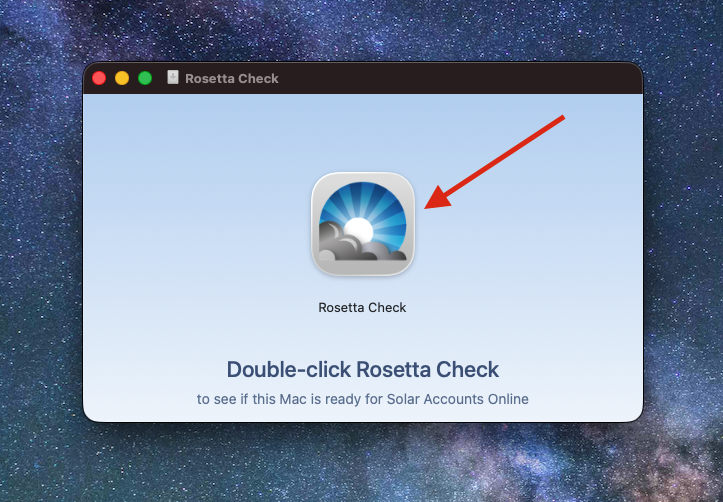
The first time you open it, macOS asks whether you're sure you want to open an app downloaded from the Internet. Click Open.
Make sure your Mac is connected to the internet, then click Install Rosetta:
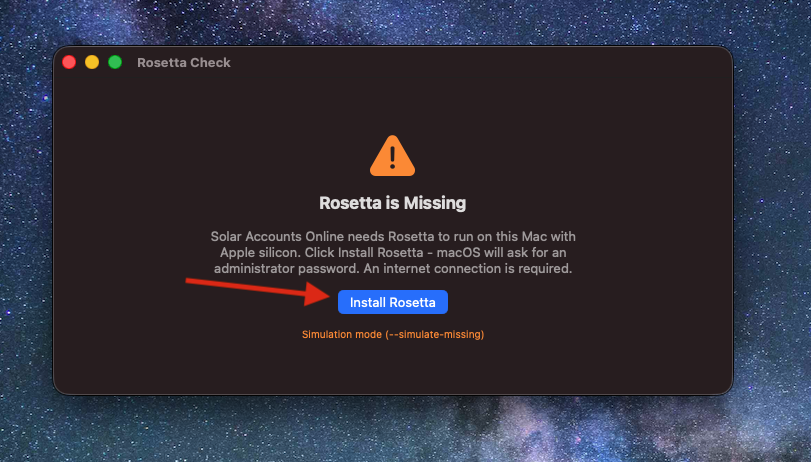
macOS asks for the name and password you use to log in to your Mac. Enter them and click OK. This window comes from macOS itself and is labelled osascript. If you're not an administrator of the Mac, ask someone who is to enter their details.
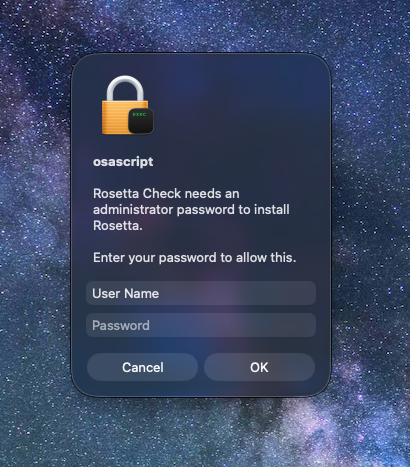
Rosetta then downloads from Apple, which usually takes a minute or two.
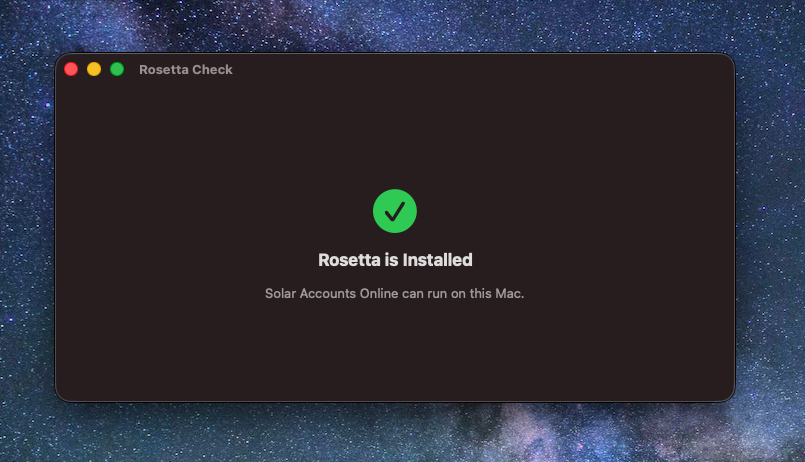
When Rosetta Check shows Rosetta is Installed, close it and open Solar Accounts Online as usual:
softwareupdate --install-rosetta --agree-to-license, press Return and enter your Mac password when asked.