Follow these three steps to install Solar Accounts on your Mac.
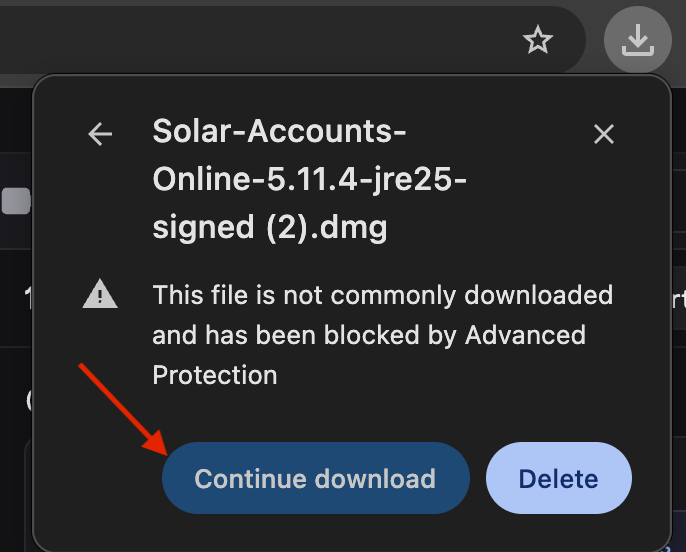
Your web browser may warn that the file is not commonly downloaded. The Solar Accounts installer is safe and digitally signed, so click Continue download to keep the file.
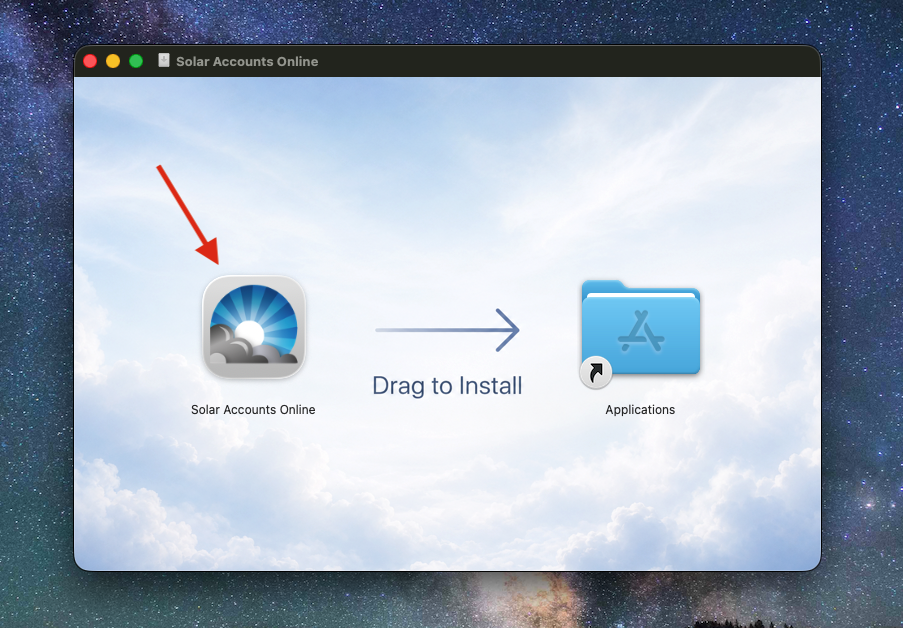
Open the downloaded file, then drag the Solar Accounts Online icon onto the Applications folder to install it.
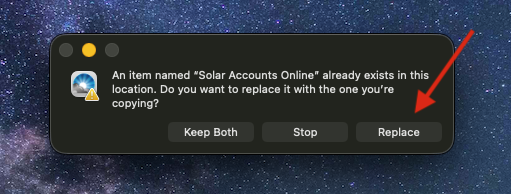
If you already have an earlier version installed, macOS will ask what to do. Click Replace to update to the latest version.
Once installed, open Solar Accounts Online from your Applications folder to get started.
If you previously purchased the offline version of Solar Accounts you can set up your online account and import your existing data described on this page.
Yes, Solar Accounts allows you to directly submit VAT returns to HM Revenue and Customs as described on this page.
Solar Accounts Online runs on Windows (7 to 11) and MacOS (10.7 to 26.2).
Sorry no, we do not currently support mobile devices.
